Start here
Getting started
From sign-up to your first closed month in about ten minutes of your time. After that the books run themselves.
What you need
- Your business bank login handy (you enter it on Plaid's screen, never ours).
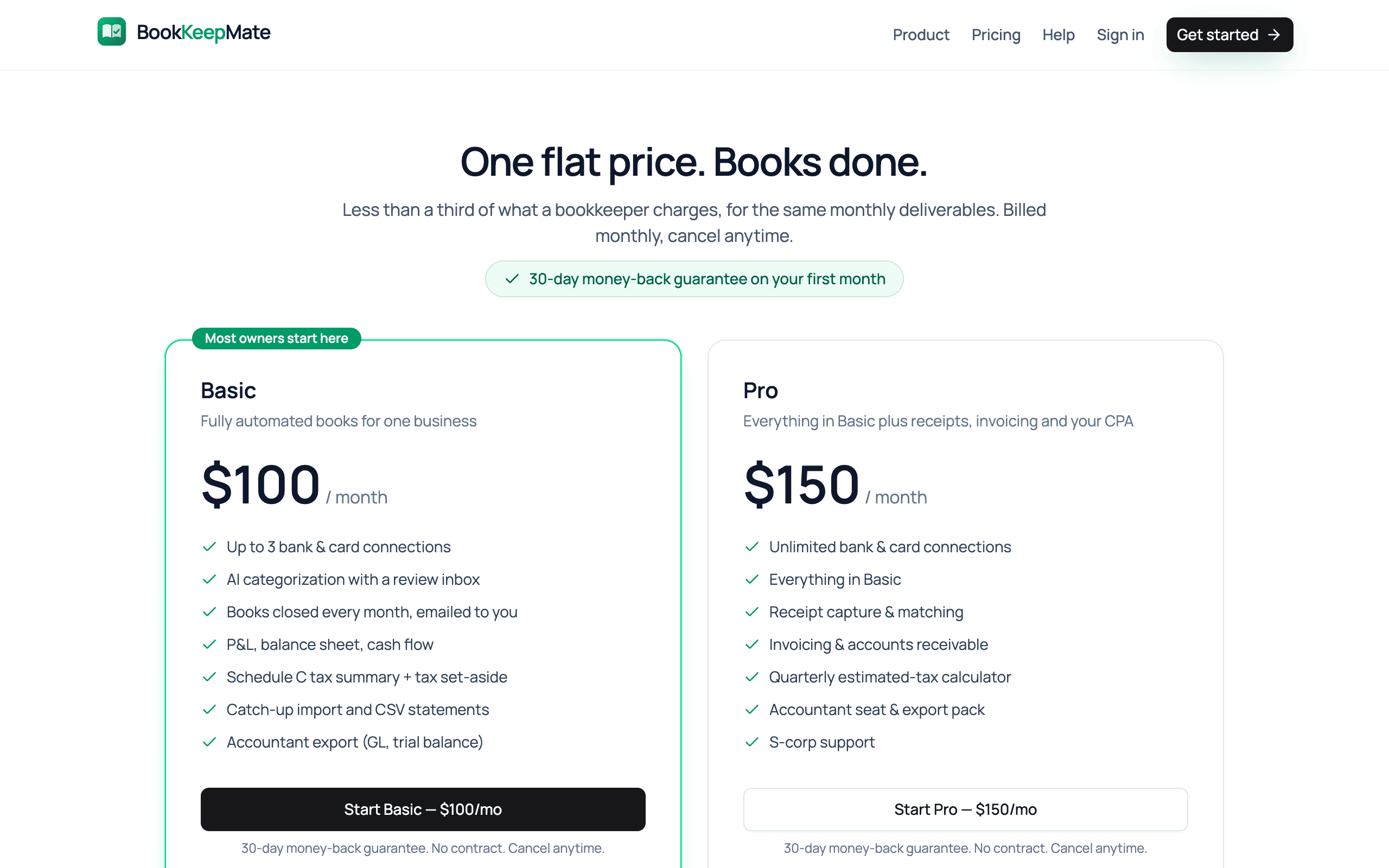
- A card for the subscription — Basic is $100/month, Pro is $150/month, billed monthly, cancel anytime, 30-day money-back guarantee on the first month.
- A rough idea of when your books should start. Most people pick January 1 of the current year.
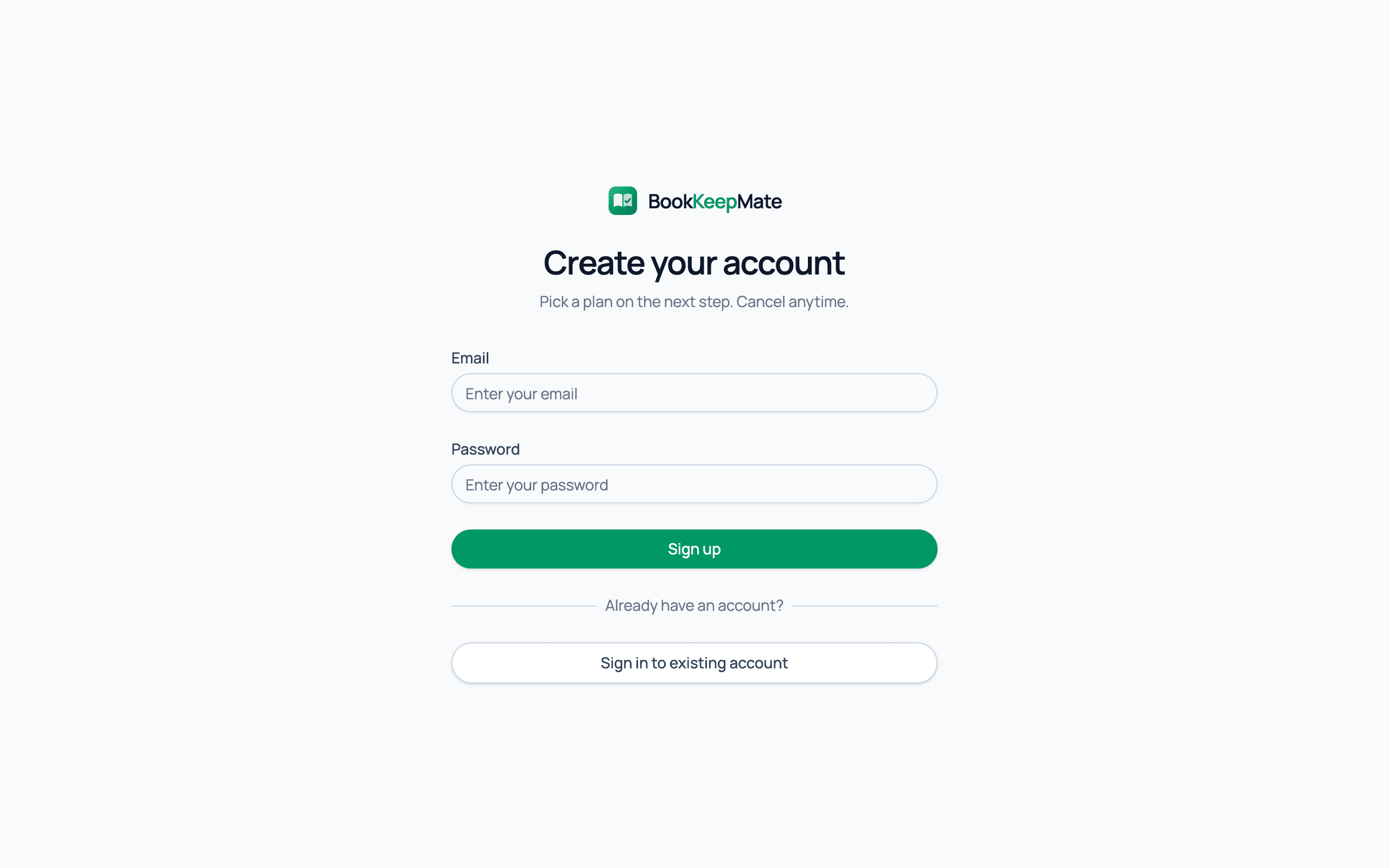
1. Create your account
Go to Sign up, enter your email and a password of at least 8 characters. We send a confirmation link right away — click it to activate the account (it works for 24 hours; the confirmation page can resend it). One account is one business; if you run several businesses, each needs its own subscription.
2. Choose a plan
You land on the pricing page. Pick Basic unless you need more than three bank or card connections, receipts, invoicing or S-corp support. You can switch plans later from Settings.
3. Tell us about the business
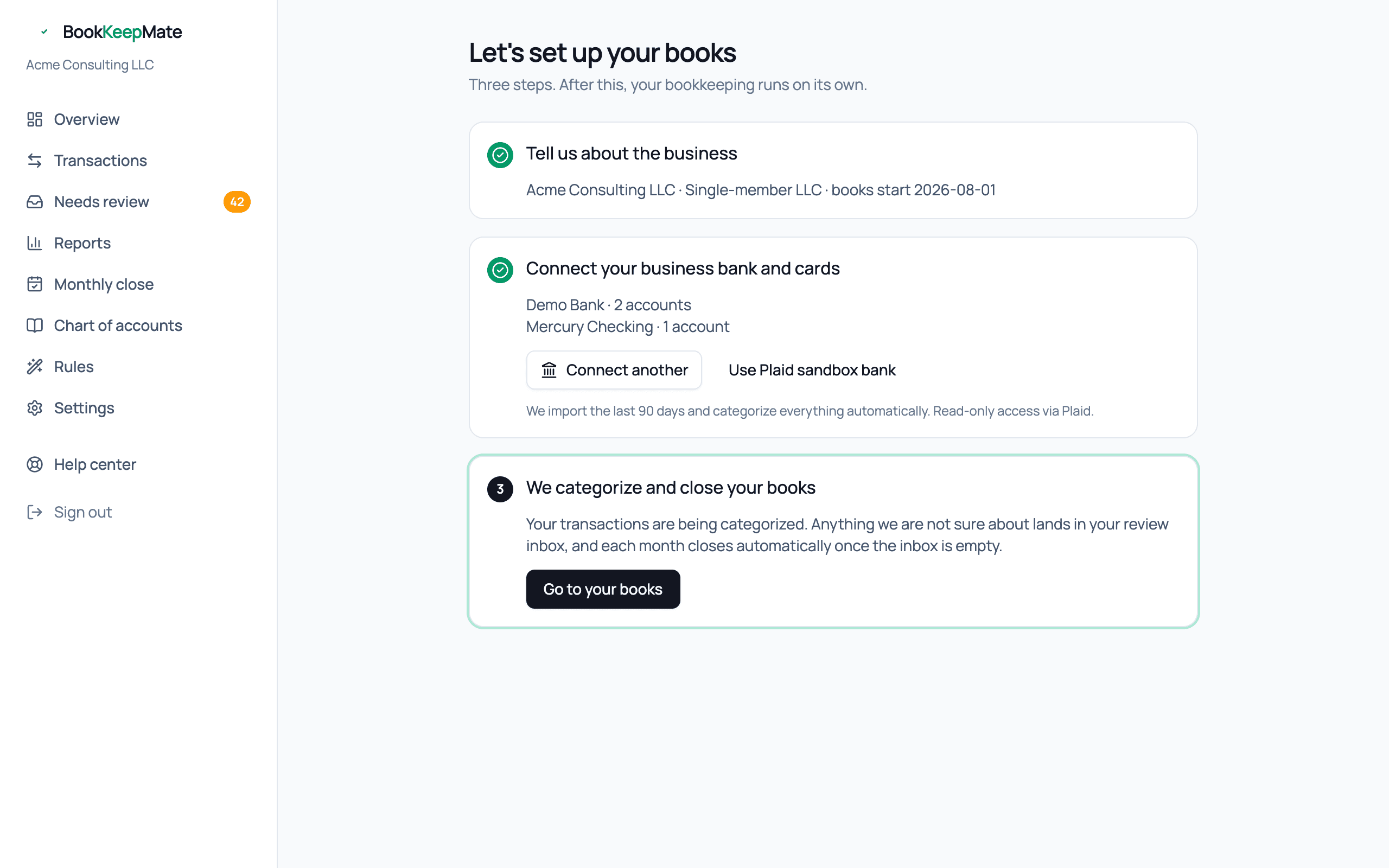
Three questions, used everywhere downstream:
- Business name — appears on reports and emails.
- Entity type — sole proprietorship, single-member LLC or S corporation. This changes the tax estimate (S-corps don't pay self-employment tax on distributions).
- Start books from — transactions before this date are imported but kept out of the books, so an old personal purchase from two years ago never shows up in this year's reports. We pull up to 24 months of history, so pick the date you actually want your books to begin.
4. Connect your bank and cards
Click Connect a bank, search for your institution in Plaid's window and sign in there. Plaid gives us read-only access: we can see balances and transactions, and nothing else. Connect every account the business uses — checking, savings, credit cards — so transfers between them are recognized as transfers rather than income or expenses.
The first sync pulls your history and categorizes it immediately. For a typical business this takes under a minute; a long catch-up can take a few.
5. Your first look at the books
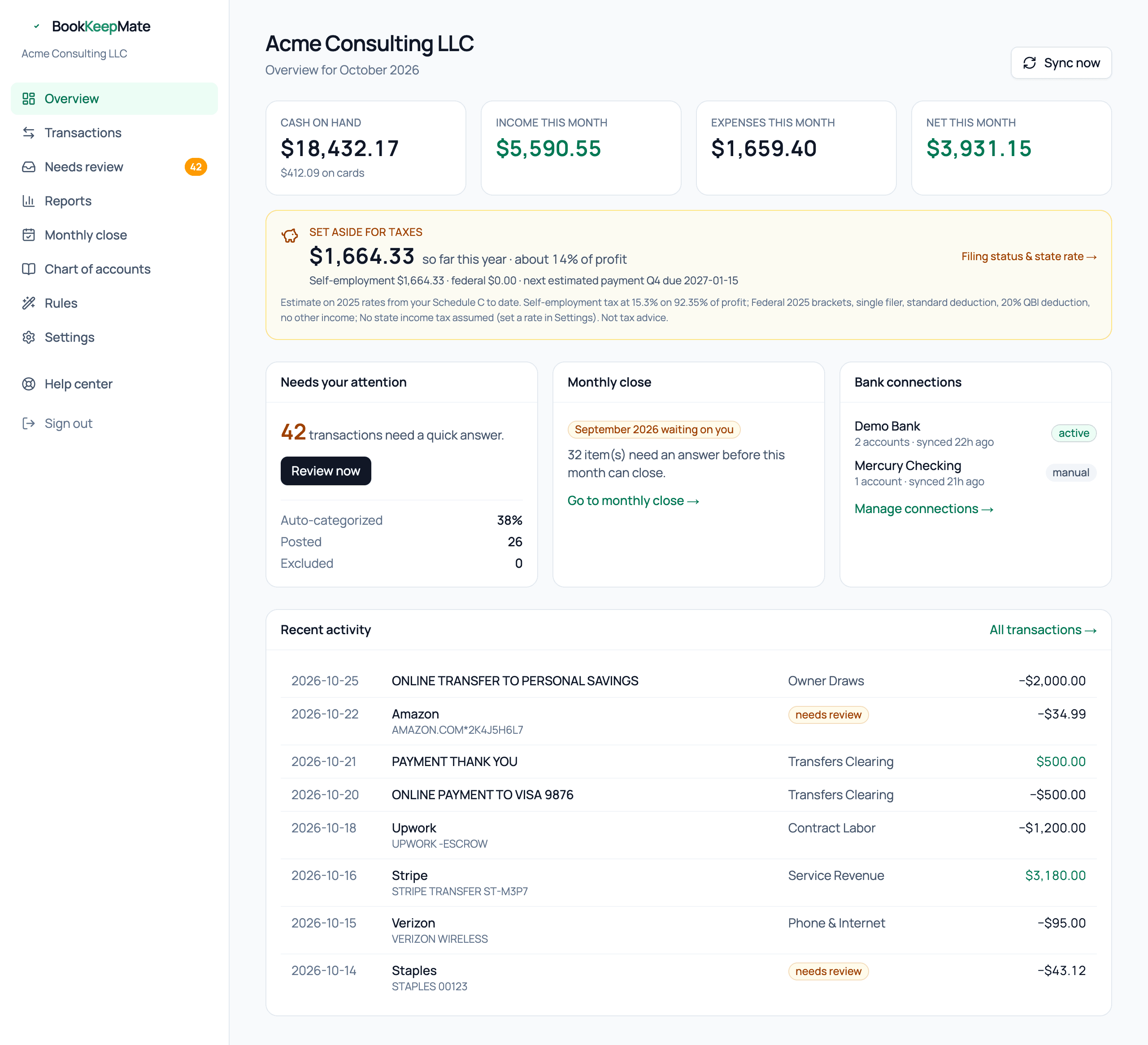
You'll land on the Overview. The number to look at first is Needs your attention: those are the transactions the system wasn't sure about. Open the review inbox and answer them — it's mostly "was this business or personal?" and "which category?".
From here on
- Every six hours we pull new transactions and categorize them. Rules you create and corrections you make are applied first, so the inbox gets quieter every month.
- When something needs you, you get at most one email a day with the questions. Most owners spend 10–15 minutes a month here.
- On the 3rd of each month, the previous month closes automatically if the inbox is clear, and the Books Closed report is emailed to you. If it isn't clear, you get a nudge instead.
- At tax time, open Reports → Schedule C and send the accountant export to your preparer.