Setup
Bank connections and statement import
Everything starts with the bank feed. This covers connecting through Plaid, what the statuses mean, catching up on history, and uploading statements for accounts Plaid can't reach.
Connecting through Plaid
From Onboarding, the Overview, or Settings → Bank connections → Connect another bank, click the button and sign in to your bank inside Plaid's window. Plaid is the same connection layer used by Venmo, Robinhood and most banking apps; it gives us read-only access to balances and transactions and nothing else. We never see your bank password and cannot initiate payments.
- Connect every account the business uses, including credit cards, so transfers between them are recognized.
- Basic includes up to three institutions; Pro is unlimited. One institution can contain several accounts.
- History is pulled back to your books start date, up to 24 months. Transactions before the start date are imported but excluded from the books.
Syncing
New transactions are pulled every six hours and immediately categorized. Pending transactions appear with a pending badge and are replaced by the final charge when the bank settles it, keeping their category. Use Sync now on the Overview or Settings to pull immediately.
Connection status
- active
- Syncing normally. The last sync time is shown.
- error
- The bank rejected our last request — most often because it wants you to sign in again (password changed, new security step). Connect the same institution again from Settings and the existing accounts resume; if anything looks duplicated afterwards, email support and we'll merge them.
- disconnected
- You or the bank revoked access. Reconnect to resume.
- manual
- An account you created for statement uploads; it never syncs on its own.
Importing a CSV statement
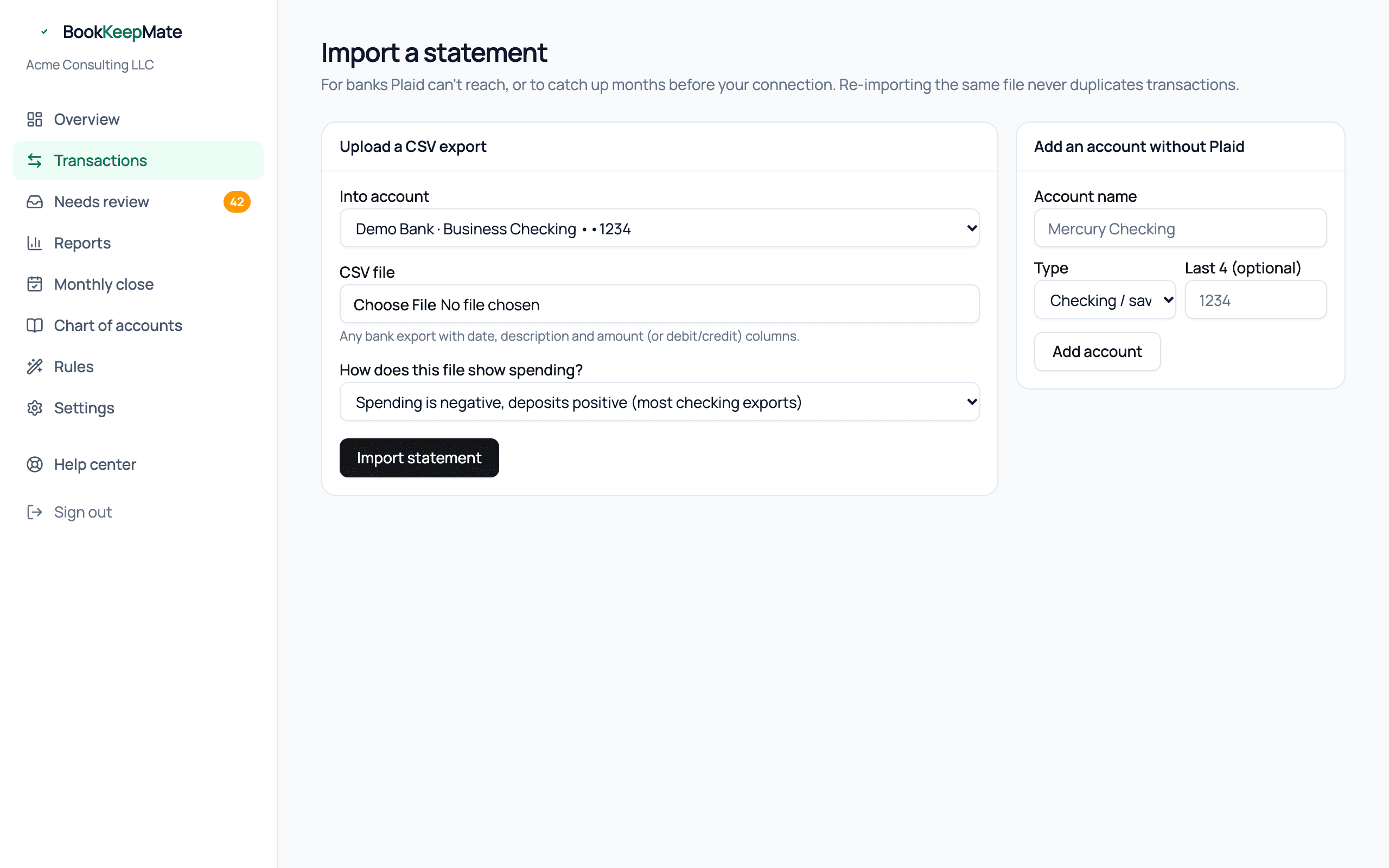
For a bank Plaid doesn't support, a closed account, or history older than Plaid provides, download a CSV from your bank's website and upload it from Transactions → Import a statement.
- If the account isn't connected, add it on the right first: name, type (checking/savings or credit card), last four digits.
- Choose the account, pick the file, and say how the file shows spending — most checking exports use negative numbers for money out, most credit-card exports use positive.
- Click Import statement. The columns (date, description, amount — or separate debit/credit) are detected automatically from the header row.
- Re-importing the same file, or overlapping date ranges, never creates duplicates.
- Imported transactions run through the same categorization as synced ones.
- Rows before your books start date are kept but excluded.
Business expenses on a personal card
Don't connect your personal card. Instead, export just the business charges from it as a CSV, add a manual account called something like "Personal Amex (business only)", and import them there. They'll show as a liability you owe yourself, which is exactly what they are; mark the repayment as an owner contribution when you reimburse yourself.
When a bank asks you to sign in again
Banks expire access from time to time, usually after a password change or when their permission runs out. When that happens we email you and show a notice on your Overview. Open Settings → Bank connections, click Fix connection and sign in. Nothing is lost: we catch up on every transaction you missed.
Removing a connection
In Settings → Bank connections, click Disconnect next to the bank. We stop syncing and delete our access right away. Your history stays in the books. If you connect the same account again later, it picks up on its existing ledger account and transactions we already have aren't added twice.